
With YellowKey getting a lot of attention in the forensics community, let us explain what it actually is, how it works, and what your options are when it doesn’t.
What is YellowKey?
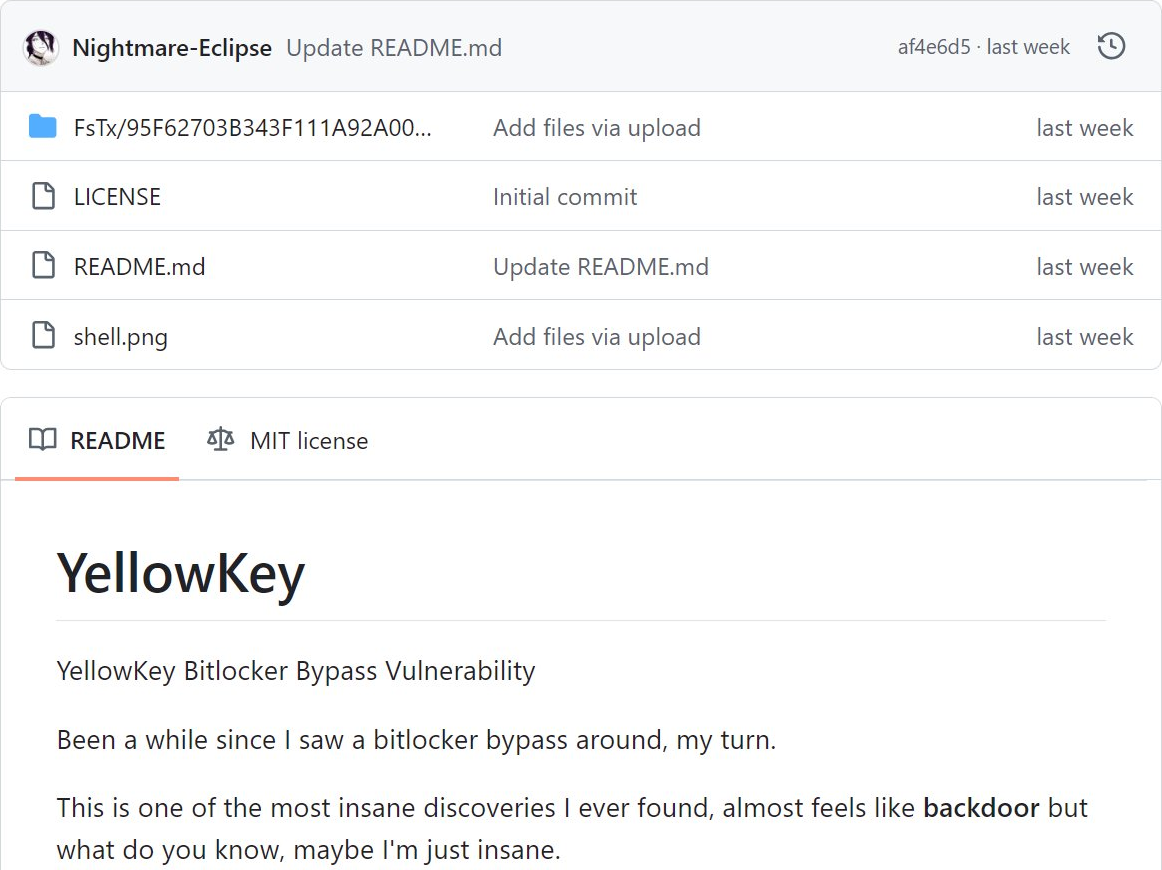
In simple terms, YellowKey is an exploit for BitLocker decryption that leverages a security vulnerability in the Windows Recovery Environment (WinRE). It allows an examiner to open a command prompt within WinRE and retrieve the BitLocker Recovery Key, granting instant access to a BitLocker-encrypted volume protected with TPM.
The YellowKey file was publicly available on GitHub until it was removed on May 26, 2026. While the original repository is no longer accessible, the file can still be downloaded from the archived version of the page.
How it works
Windows Recovery Environment (WinRE) is a Microsoft tool designed to help recover a system after a crash or failure. Its core component is the winre.wim file – a compact Windows OS image that loads when the system boots into recovery mode.
On computers with BitLocker full-disk encryption, WinRE operates the same way. When the default protection is used (TPM only), BitLocker decryption happens automatically during WinRE startup, without prompting the user for credentials. To prevent attackers with physical access to the computer from abusing this, Microsoft implemented the Trusted WIM Boot mechanism, which blocks custom code from running inside WinRE.
Trusted WIM Boot works as follows:
- When BitLocker is enabled, it generates two keys: the FVEK (Full Volume Encryption Key), which directly encrypts the partition data, and the VMK, which encrypts the FVEK. The VMK is in turn protected by one or more key protectors (such as the TPM with PIN or a Recovery Key). Learn more about the basic principles of BitLocker encryption.
- The system computes a hash of the
winre.wimfile (let’s name itwinre_digest) located in the Recovery partition at:\Recovery\WindowsRE\winre.wim
This hash is used to verify the integrity of the Windows Recovery Environment. For the verification routine to pass, the hash should be updated every time WinRE changes. - The
winre_digesthash is saved in BitLocker metadata located on the protected partition. The record has entry type “0x11” with value type “0x07” (FVE_DATUM_VALIDATION_INFO). - Using the VMK, the system computes the
meta_authentication_tagof BitLocker metadata, which includes the VALIDATION_INFO record with thewinre_digest.
In summary: when the computer boots into Windows Recovery, the bootloader bootmgfw.efi retrieves the VMK from the TPM, then verifies the integrity of the WinRE image by checking the meta_authentication_tag and comparing the hash of winre.wim against the winre_digest value stored in the protected partition’s metadata. If the hashes do not match, the VMK is securely erased from memory. This means that any modification to (or substitution of) the winre.wim file will block access to the protected partition in WinRE.
It is worth noting that BitLocker’s integrity verification operates independently of the configured PCR bitmap – the VMK can be unsealed against both profiles: (7, 11) and (0, 2, 4, 11).
YellowKey exploits a vulnerability in the winre.wim images of Windows 11 and Windows Server 2022/2025. It allows compromising the winre.wim image without changing its contents, thereby passing the integrity check and enabling code execution in the Windows Recovery Environment, for example, running cmd.exe. The attack works as follows: because the winre.wim hash still matches the winre_digest, the bootloader does not erase the VMK from memory. YellowKey then triggers a code path where WinRE fails to lock the BitLocker volume, leaving the VMK accessible inside the recovery environment.
Gaining access to data on an encrypted partition involves two phases:
- Exploiting the vulnerability – obtaining the ability to run commands in
cmd.exe; - Accessing the encrypted data – for example, running
manage-bdeto retrieve the Numerical Password.
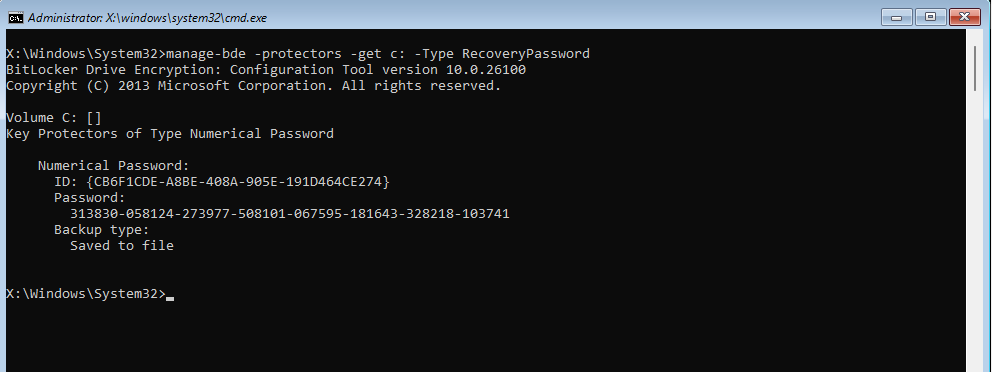
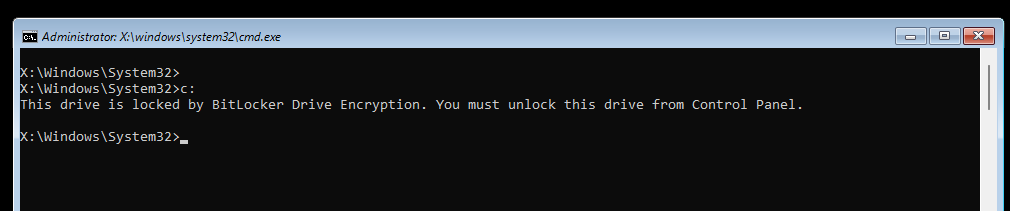
Completing the first phase does not guarantee the second. If the Trusted WIM Boot check passes, the attacker can run manage-bde and acquire the Numerical Password. If not, cmd.exe is accessible but the encrypted partition remains locked.
Microsoft has published guidance for eliminating this vulnerability (CVE-2026-45585). The recommended fix is to remove the autofstx.exe entry from the BootExecute registry value inside the winre.wim image. Once this patch is included in Windows Update, the YellowKey method will no longer function on newly updated systems. Until then, the method remains viable on computers that have not received recent updates.
How to use YellowKey
- Download the YellowKey archive from the archived GitHub page.
-
Copy the FsTx folder to a USB drive by following the instructions in the archived repository README.
NoteWindows Defender has been updated to detect and quarantine YellowKey components, so make sure to disable the Defender prior to creating the USB. - Plug the USB drive into the target BitLocker-protected computer.
- Boot the target computer into the Windows Recovery Environment (hold the SHIFT key and click Restart).
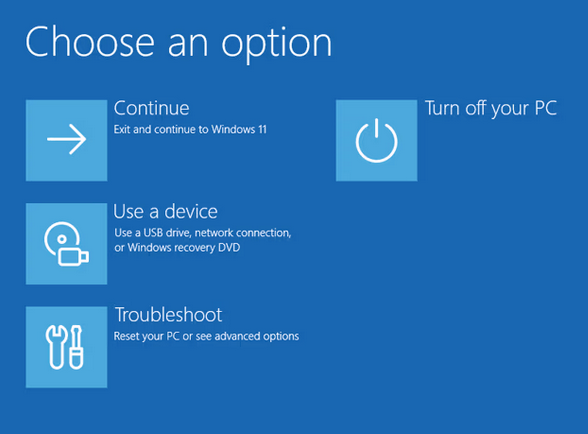
- Release the SHIFT key and hold the CTRL key. Do not release the CTRL key until the shell opens. If you see the following screen, the attempt has failed. Either the device is not supported, or you may need to repeat the steps.
- The shell will provide unrestricted access to the BitLocker-protected volume.
- Type the commands:
-
manage-bde -status X:(X: is the drive letter)
to display the protection status and the list of BitLocker protectors: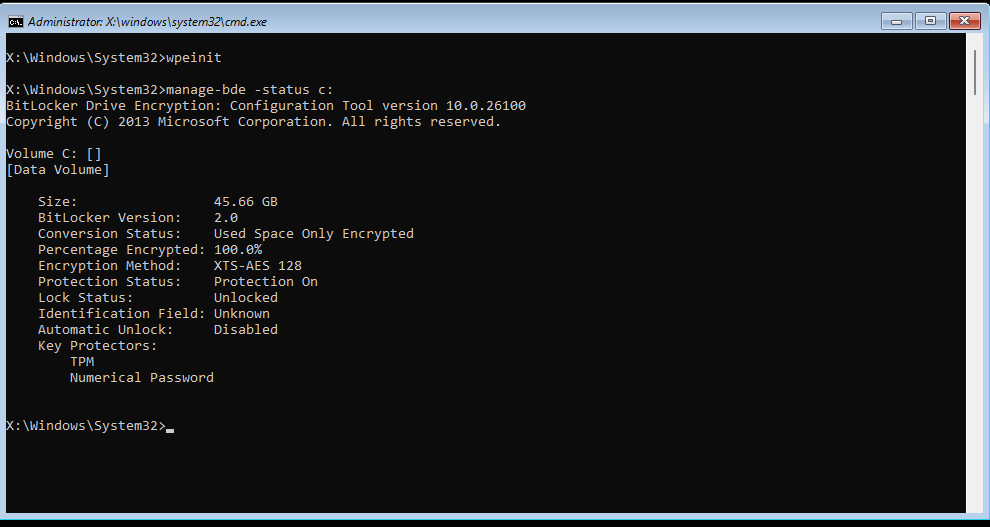
-
manage-bde -protectors -get X: -Type RecoveryPassword
to get the “Numerical Password“ protector displayed, which is the BitLocker Recovery Key: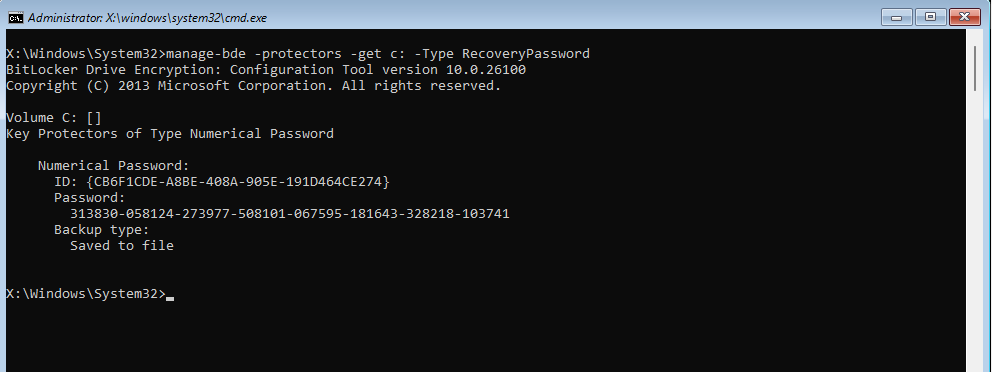
-
What if a PIN is also set?
YellowKey only works on systems protected by TPM alone. However, Passware offers a solution for systems where a BitLocker PIN is also set: in some cases, the PIN can be recovered prior to acquiring the VMK.
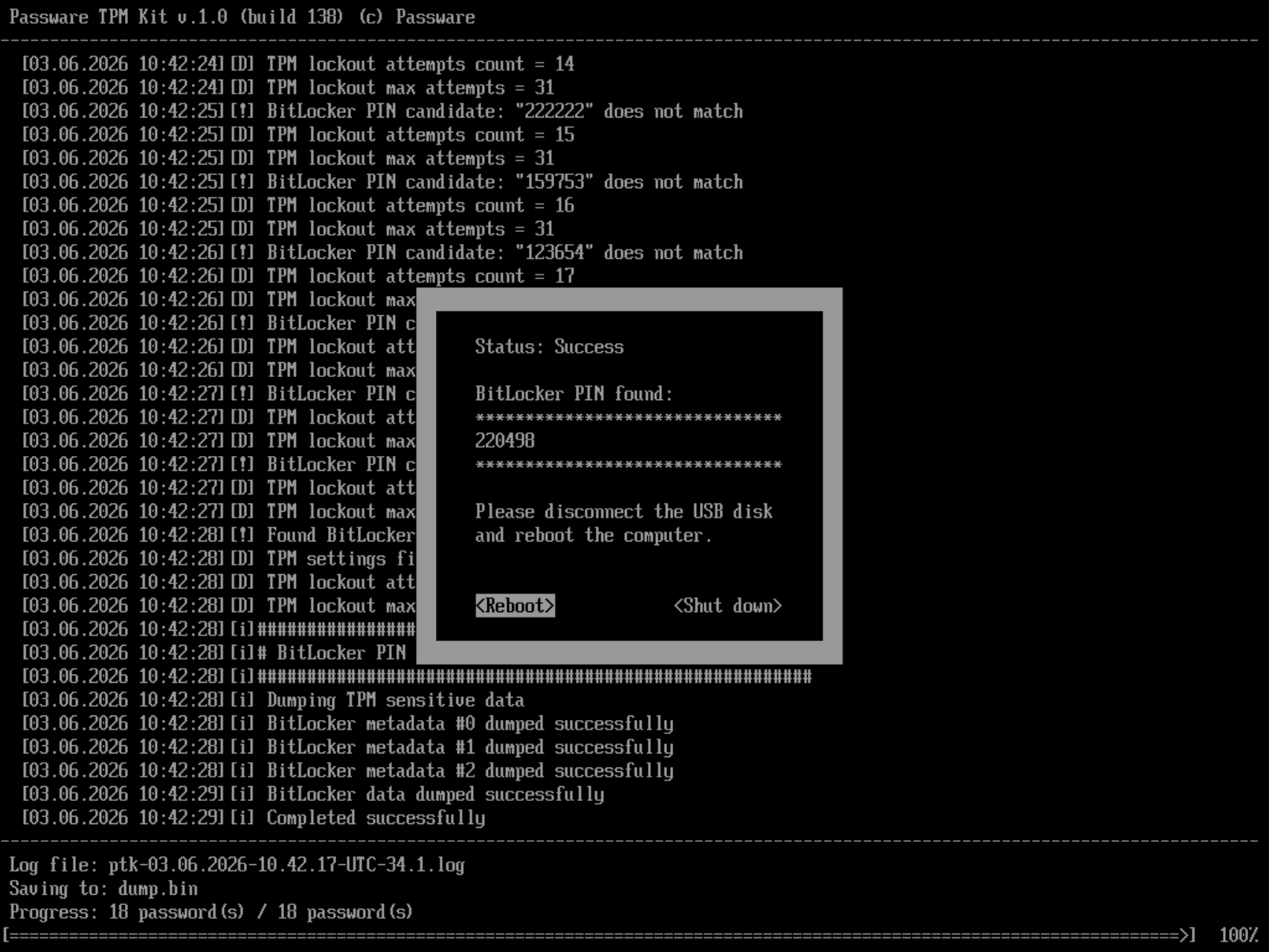
BitLocker PIN recovery ahead of VMK acquisition is available for Passware Kit Ultimate and Device Decryption Add-on users.
What if YellowKey fails?
The YellowKey method depends on the system state and might not work even when WinRE is present. If YellowKey doesn’t work in your case, Passware Kit Ultimate offers several alternative BitLocker decryption methods that don’t rely on the Windows Recovery mechanism.
One standout option is the recently released “Magic Drive” method, which decrypts TPM-protected BitLocker devices in minutes by extracting the VMK directly from the TPM chip. It works across a broad range of devices and requires no network adapter, making it quick to deploy in the field.
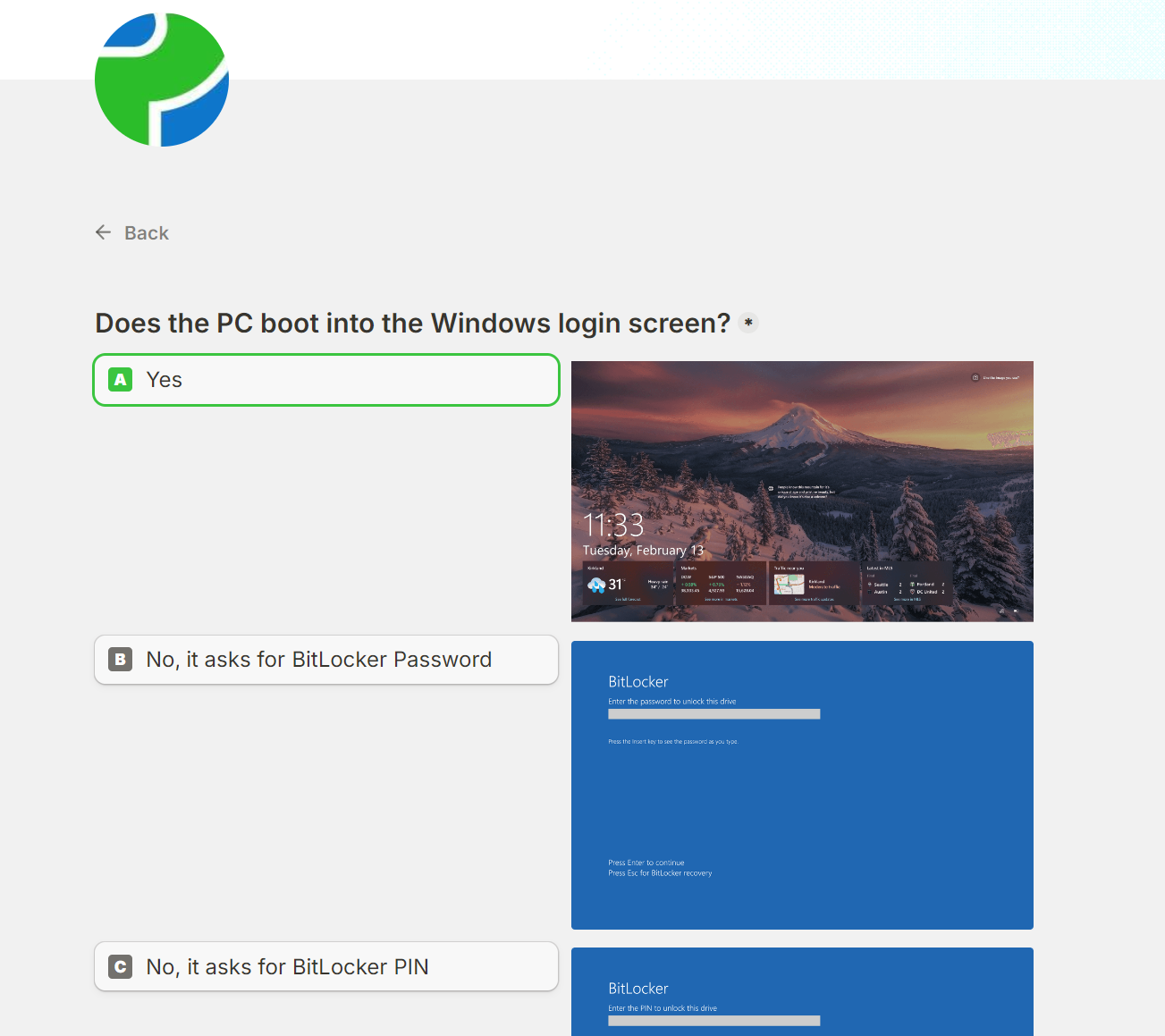
You can go through the Passware BitLocker Wizard – a newly released guide that points you to the right BitLocker decryption approach based on your environment and the evidence at hand.
Summary
YellowKey provides a way to get access to TPM-protected BitLocker volumes on Windows 11 24H2 and later systems that have not been recently patched.
It works by exploiting a vulnerability in the WinRE image where it fails to lock the BitLocker volume, leaving the data accessible.
If YellowKey is not applicable in your case, e.g., if BitLocker encrypts an external drive, use the Passware BitLocker Wizard to find the right decryption solution for your specific case.
Related products: Device Decryption Add-on, Passware Kit Ultimate
Comments
0 comments
Article is closed for comments.